
Your Google Business Profile is the panel that appears when people search for your business or for services near them on Google Search and Google Maps. For local businesses it is often the first impression, and it can bring more calls than your website. This guide covers every part of Google Business Profile optimization, from setup to reviews, in the order that matters most.
On this page
- Key takeaways
- How Google ranks local results
- Step 1: Claim and verify your Google Business Profile
- Step 2: Choose the right categories
- Step 3: Complete every field
- Step 4: Add photos and videos
- Step 5: Build a steady flow of reviews
- Step 6: Post updates
- Step 7: Keep your details consistent everywhere
- Step 8: Link your profile to a strong website
- Step 9: Track results
- Common mistakes that hold profiles back
- Frequently asked questions
Key takeaways
- Google ranks local results on relevance, distance and prominence.
- The right primary category, complete details and real photos improve relevance.
- A steady flow of genuine reviews, with replies, builds prominence.
How Google ranks local results
Google has said local results depend mainly on three things:
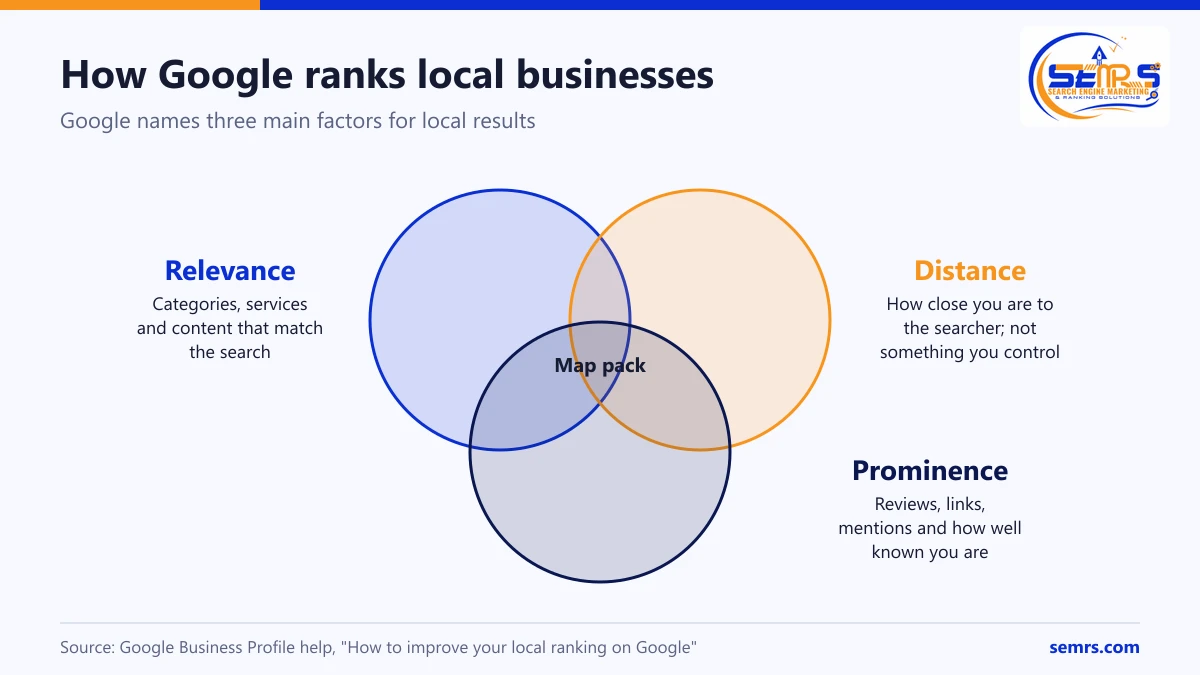
- Relevance: how well your profile matches what someone searched.
- Distance: how far your business is from the searcher or the location in the search.
- Prominence: how well known your business is, based on reviews, links, articles and other signals.
You cannot change distance, but you can improve relevance and prominence a lot.
Step 1: Claim and verify your Google Business Profile
Search for your business on Google Maps. If a profile exists, claim it; if not, create one at business.google.com. Verification may be by video, phone, email or postcard depending on your business. Use your real business name, without extra keywords, which breaks Google’s guidelines for representing your business.
Step 2: Choose the right categories
Your primary category is one of the strongest relevance signals. Pick the most specific one that describes your core business, for example “Personal injury attorney” rather than “Lawyer”, or “Emergency plumber” only if that is truly your main service. Add a few secondary categories for other real services.
Step 3: Complete every field
- Address or service area: show your address if customers visit you; use a service area if you travel to customers.
- Phone and website: use a local number and link to the most relevant page.
- Hours: keep regular and holiday hours accurate.
- Services and products: list each service with a short description and, where it makes sense, prices.
- Business description: 750 characters about who you serve and what makes you different, written for people.
- Attributes: accessibility, payment options and other relevant details.
- Booking link if you take appointments online.
Step 4: Add photos and videos
Upload a logo, a cover photo, exterior photos that help people find you, interior photos, team photos and photos of your work. Real, recent photos build trust. Add new photos every month.
Step 5: Build a steady flow of reviews
Reviews influence both rankings and decisions. Ask every satisfied customer, at the moment they are happiest, with a direct link. Our free Google review link generator creates one.
Follow Google’s rules: do not offer incentives, do not ask only happy customers to review while filtering out unhappy ones (review gating), and never post fake reviews. Reply to every review politely, thank people for positive ones and address negative ones calmly and helpfully.
Step 6: Post updates
Google posts let you share offers, events and news on your profile. Regular posts keep the profile fresh and give searchers a reason to contact you. Use a clear photo and a call to action.
Step 7: Keep your details consistent everywhere
Your business name, address and phone number should match on your website, social profiles and directories such as Apple Maps, Bing Places, Yelp and industry directories. Add LocalBusiness structured data to your website; our local business schema generator creates the code.
Step 8: Link your profile to a strong website
Your profile and website support each other. Make sure your site has a page for each main service and location, loads fast and shows the same details as your profile. Read our guide to SEO for small business for the website side.
Step 9: Track results
The profile’s performance view shows searches, views, calls, direction requests and website clicks. Add UTM tracking to your website link (our UTM builder makes this easy) so Google Analytics shows visits from your profile separately.
Common mistakes that hold profiles back
- Keyword-stuffed business names, which can lead to suspension.
- Using a virtual office or mailbox as an address.
- Wrong primary category.
- Old photos and outdated hours.
- Ignoring reviews or replying defensively.
- Several duplicate profiles for one location.
Frequently asked questions
Is Google Business Profile free?
Yes. Creating and managing a profile is free. Google also sells ads, including Local Services Ads, which can appear above the map results.
How long does it take to rank in Google Maps?
Changes to categories and details can show within weeks, while reviews and prominence build over months. Competitive categories in big cities take longer.
Can I have a Google Business Profile without an address?
Yes. Service-area businesses can hide their address and show the areas they serve instead.
How many reviews do I need?
There is no fixed number. Aim to earn reviews steadily, month after month, and compare yourself with the businesses that already appear in the local pack for your services.
Can SEMRS manage my Google Business Profile?
Yes. SEMRS local SEO includes profile optimization, posts, review strategy and reporting. See our SEO services or get a free quote.