Fast pages keep visitors happy, and Google likes them too. The SEMRS Speed module makes your WordPress site faster with a few clicks. It is part of the free SEMRS Core plugin. The safe options are already switched on for you.
Open the SEMRS speed settings
Go to SEMRS → Features and switch on Speed. Then open SEMRS → Speed. You will see four tabs.
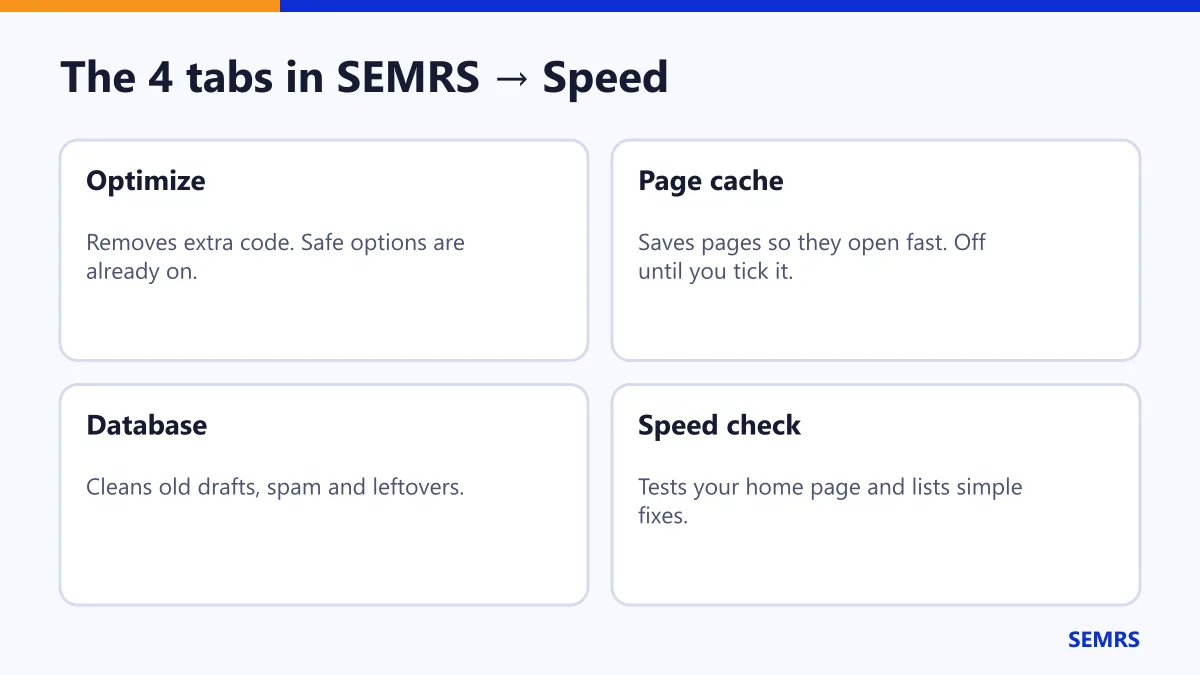
1. Optimize: remove extra code
Most options here are already on. Each one removes a little code your visitors do not need.
| Option | Starts | What it does |
|---|---|---|
| Remove emoji scripts | On | Browsers show emoji by themselves |
| YouTube click-to-play | On | Loads the video player only when someone clicks |
| Preload the featured image | On | Shows the main picture sooner |
| Block styles only for blocks on the page | On | Each page loads only the styles it uses |
| Limit revisions | On | Keeps up to 10 old versions of each post |
| Prefetch pages on hover | Off | Starts loading a page when the mouse points at its link |
| Inline small stylesheets | Off | Puts tiny style files straight into the page |
| Defer scripts | Off | Loads scripts after the page. Test your site after you switch it on. |
| Disable XML-RPC | Off | Leave it off if you use Jetpack or the WordPress app |
2. Page cache: the biggest speed boost
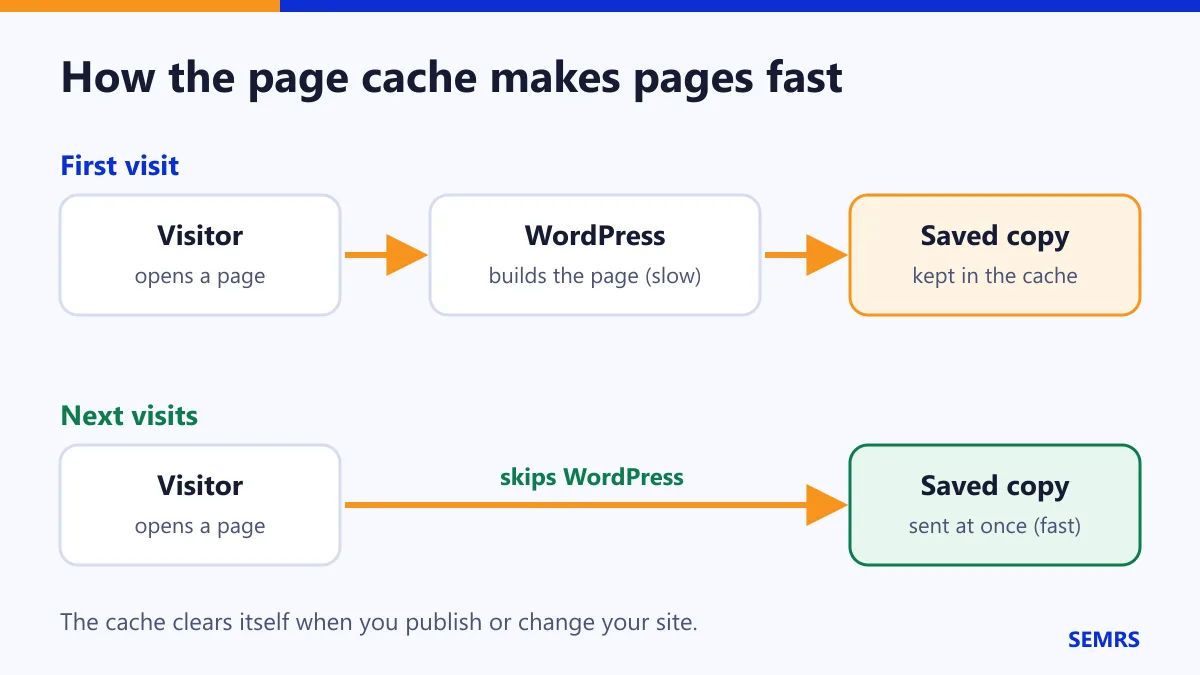
The page cache saves a copy of each page. The next visitor gets that copy at once. WordPress does not have to build the page again. It is off until you switch it on.
- Open SEMRS → Speed → Page cache.
- Tick Cache pages for visitors who are not logged in.
- Click Save Changes.
- Open your site in a private window to check it.
What is never cached: logged-in users, carts and checkouts, search results, forms and error pages. Phones and computers get their own copies.
The cache clears itself when you publish, change a menu or change settings. You can also click Clear cache in the top admin bar.
Using another cache plugin? Then the SEMRS cache pauses itself. Use only one page cache.
3. Database: tidy up
This tab shows old drafts, spam comments and other leftovers. Click Clean to remove them.
Careful: cleaned items cannot come back. Make a backup first if your host does not do it for you.
4. Speed check
Click Run speed check. SEMRS tests your home page and lists simple fixes. It checks:
- how fast your server answers
- the page size and compression
- pictures without a set size (they make the page jump)
- scripts that slow the page down
For Google’s own phone score, click Open PageSpeed Insights.
How to test safely
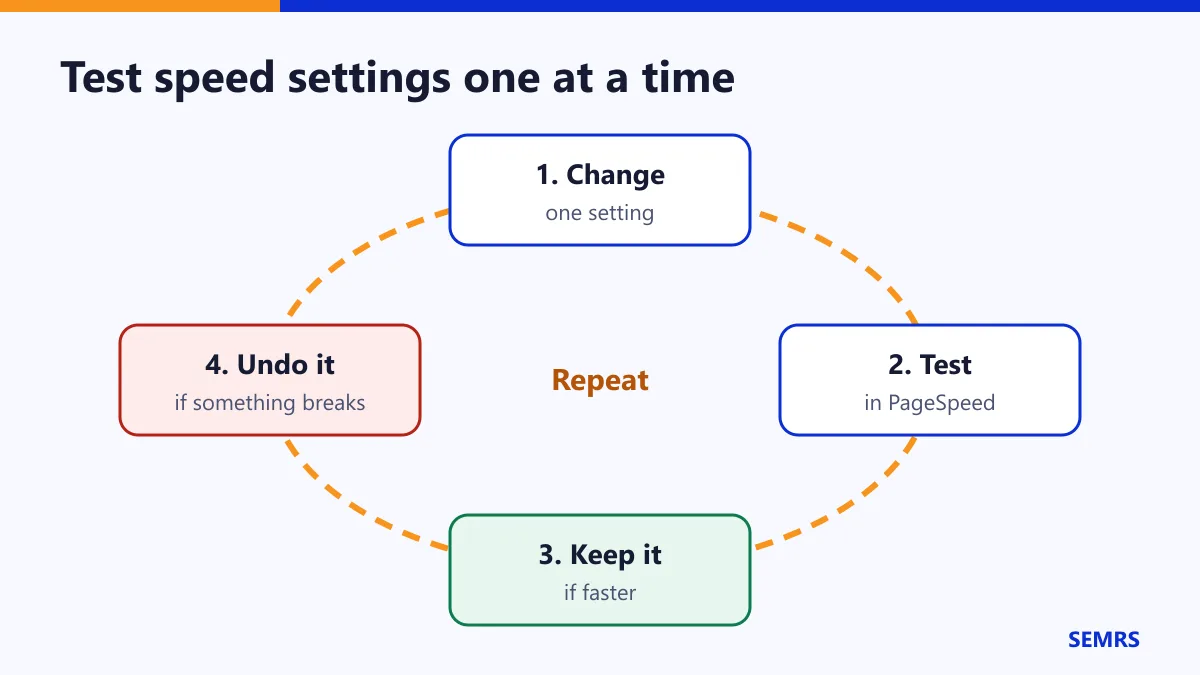
- Test a page in PageSpeed Insights and write down the score.
- Change one setting.
- Test again.
- Faster? Keep it. Something broken? Switch it back off.
Tip: do not switch on the same feature in two plugins. For example, use only one plugin to defer scripts.
Extra speed in SEMRS Pro
- Delay scripts: chat and tracking scripts wait until the visitor scrolls or taps. Ads are never delayed.
- Cache preload: after the cache clears, your main pages are saved again in the background.
- CDN: pictures and files load from your CDN.
SEMRS speed help and next steps
The SEMRS theme is already light: one small style file and one small script. Use WebP pictures and keep pages focused. Next, check your titles in the SEO guide. Something broke? Contact us.