SEMRS Blocks adds new blocks to the WordPress editor. A block is one piece of a page, like a heading, a picture or a button. The blocks work with any theme. Each one loads its code only on pages that use it, so your site stays fast.
How to add SEMRS Blocks to a page
- Open a page in the editor.
- Click the + button. Open the SEMRS group.
- Or type
/and the block name, for example/tabs. - Click the block to select it. Its settings appear in the right sidebar.
To turn off blocks you never use, go to SEMRS → Blocks, switch them off and click Save changes.
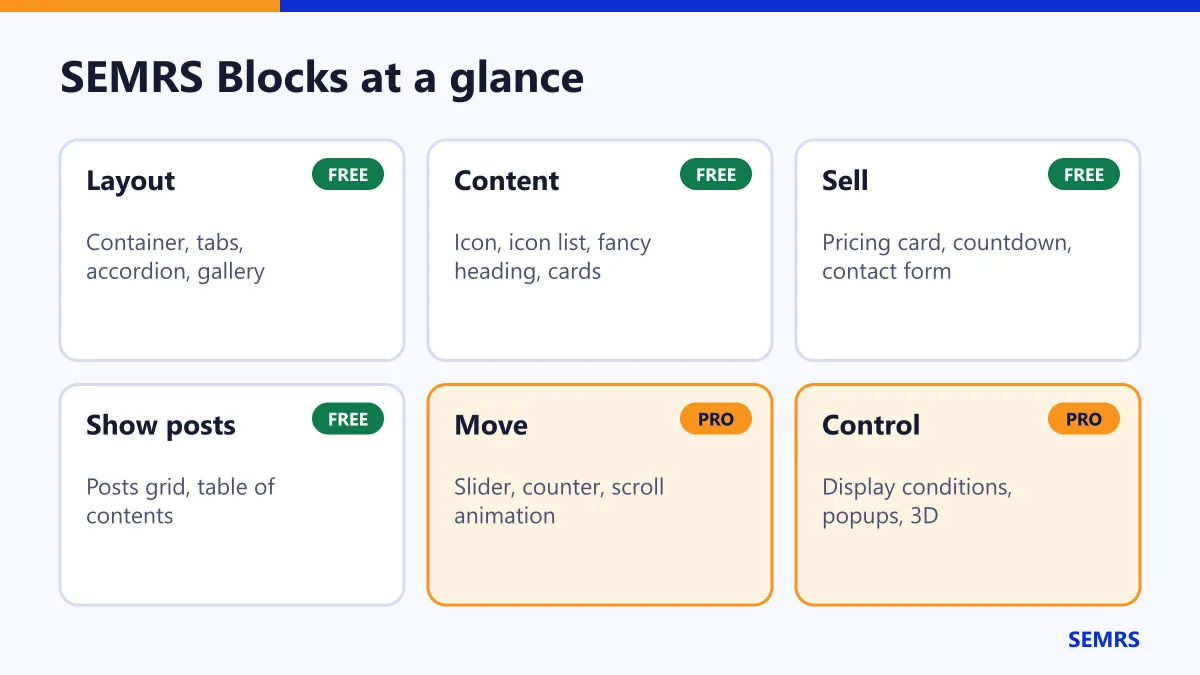
Content blocks (free)
| Block | Use it for |
|---|---|
| Icon | One icon, with or without a link |
| Icon List | Lists with check marks or other icons |
| Fancy Heading | Headings with typing words, gradients or highlights |
| Posts | A grid or list of your latest posts |
| Countdown Timer | Count down to a launch or an event |
| Pricing Card | Show a plan with its price and features |
| Service Card | Show a service with an icon, text and a link |
| Contact Form | Let people send you a message |
Layout blocks (free)
These blocks hold other blocks. Use them to build sections.
| Block | What it does |
|---|---|
| Container | A section, row or grid. Add a background color or image. On phones, rows stack one under another. |
| Tabs | Put content in tabs. Visitors click a tab to see it. |
| Accordion / FAQ | Questions that open and close. They can also become FAQ schema for Google. |
| Gallery | A photo grid. Click a photo to see it large. |
| Testimonial | A quote from a real customer. Use only real reviews you may publish. |
| Table of Contents | A list of the headings on the page, with jump links |
| Website Showcase | Cards with a desktop and phone preview of a website |
Tip: in the editor, tabs and accordions show all their parts at once. This makes them easy to edit. On your site they work as real tabs.
Hide a block on phones or computers (free)
Select any block. Open Visibility in the sidebar. Choose to hide it on phones, tablets or computers. Hidden blocks look faded in the editor, so you can still find them.
Set up the contact form
- Add the Contact Form block to your page.
- In the sidebar, type the email address that should get the messages.
- Write a short thank-you message.
- Publish the page. Send yourself a test message.
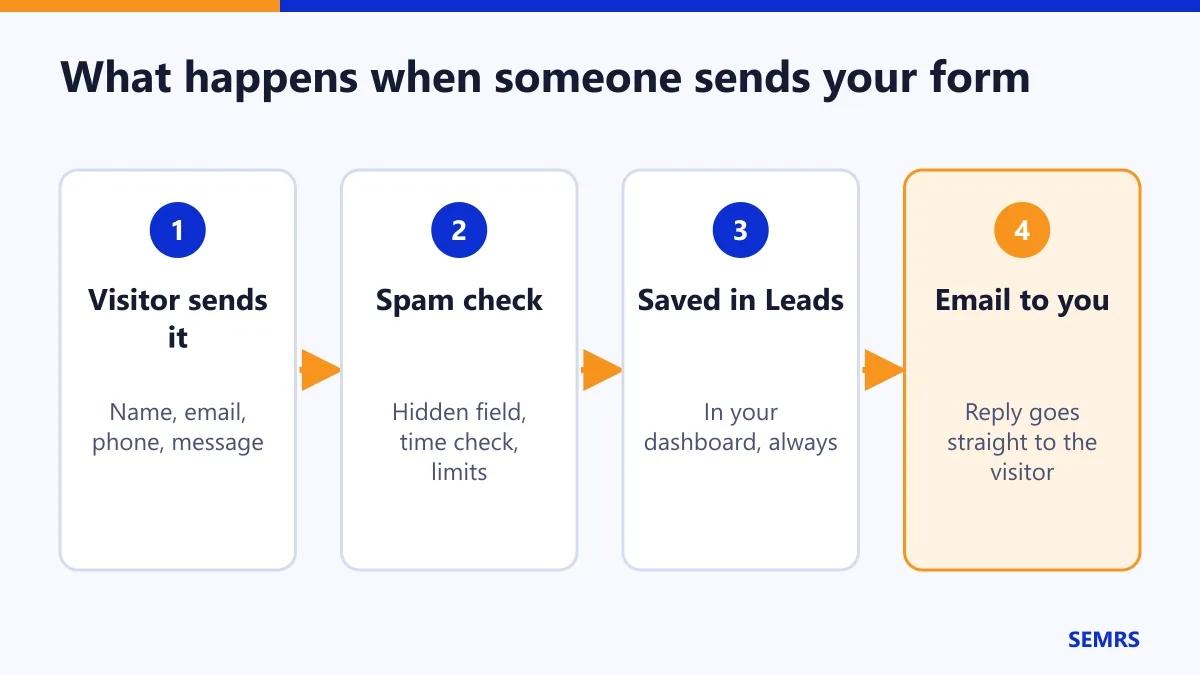
Every message is saved under Leads in your dashboard. You also get an email. When you click Reply, your answer goes straight to the visitor.
Spam protection is built in. Bots that send the form too fast are ignored. Each person can send only a few messages per hour.
No email arriving? Many web hosts block normal PHP mail. Install an SMTP plugin and connect your email account. Your messages are still saved in Leads either way.
Privacy: the form saves what people type. Say this in your privacy policy, and keep the consent box switched on.
Pro blocks (need SEMRS Pro)
| Block | What it adds |
|---|---|
| Slider / Carousel | Pictures or posts that slide |
| Animated Counter | Numbers that count up when you scroll to them |
| 3D Model Viewer | 3D models people can turn and zoom |
| Scroll animations | Blocks that fade or slide in |
| Display conditions | Show a block only to some visitors or on some dates |
| Popups | A popup made from any blocks |
Without SEMRS Pro, these blocks show a PRO badge. You can try them in the editor. They show nothing on your site until Pro is active.
Quick tips
- Make pictures small before you upload them. Always fill in the alt text.
- Use only one main heading (H1) per page.
- Be honest with countdown timers. Do not restart them to rush people.
SEMRS Blocks help and next steps
SEMRS Blocks are normal WordPress blocks, so the block editor guide on WordPress.org works for them too. Want a finished design? See the templates guide. Questions? Contact us.